How to Compress a PDF Without Losing Quality – Free Online Guide (2026)
Learn how to compress a PDF without losing quality. Reduce PDF file size for email, job applications, websites and online forms with this simple free guide.
By DocConvertPRO Editorial Team5 min read
How to Compress a PDF Without Losing Quality
Large PDF files can become a problem when you need to upload a document to a website, send it by email, submit a job application, or store many files on your device.
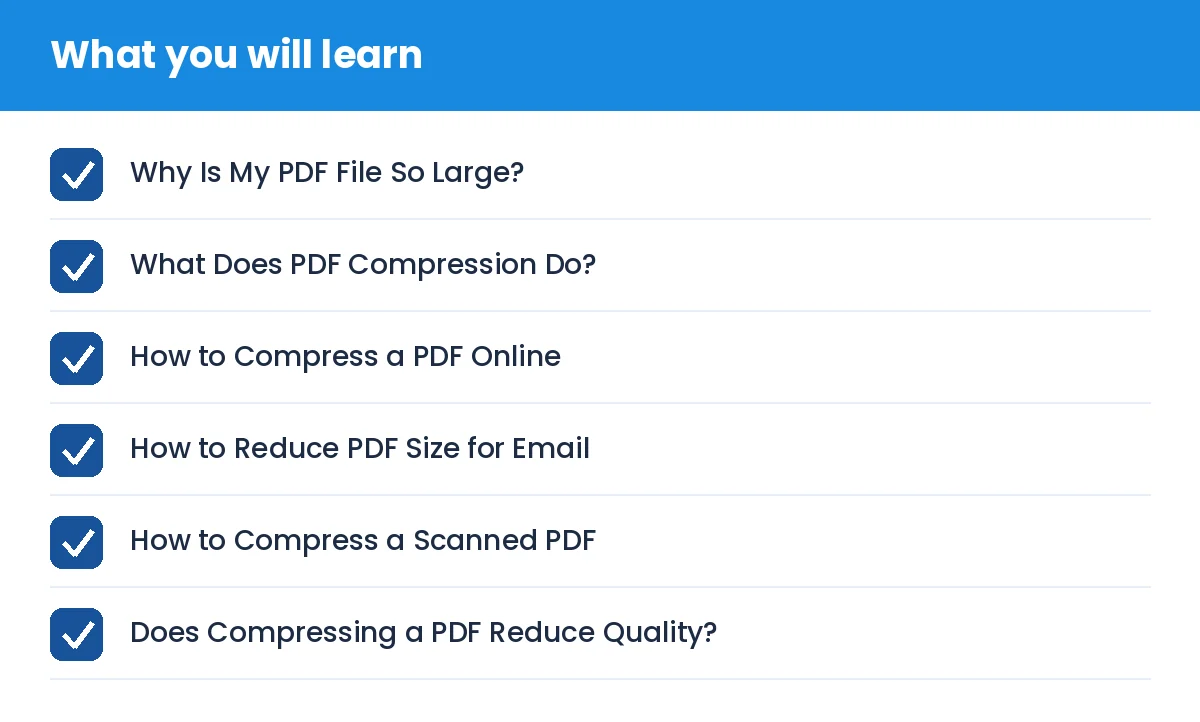
How to Compress a PDF Without Losing Quality – Free Online Guide (2026): what you will learn
A PDF may look simple but still be several megabytes because of high-resolution images, scanned pages, screenshots, embedded fonts, and other data.
The good news is that you can compress a PDF and reduce its file size while keeping the document readable.
Why Is My PDF File So Large?
Large PDFs are often caused by:
High-resolution photographs
Scanned documents
Large embedded images
Screenshots
Multiple image-heavy pages
Embedded fonts and document data
Scanned PDFs and image-heavy documents usually have the most potential for size reduction.
What Does PDF Compression Do?
PDF compression reduces the amount of data stored inside a PDF so that the final file takes up less space.
Depending on the document, compression can optimize images and other data while maintaining a useful level of readability.
The goal is simple: a smaller file size without making the document difficult to use.
How to Compress a PDF Online
Step 1: Select Your PDF
Open DocConvertPRO and select the PDF file you want to make smaller.
Step 2: Compress the PDF
Start the PDF compression process and choose a suitable compression level when the tool provides options.
For normal documents, a balanced compression level is a good starting point.
Step 3: Download and Check the Result
Download the compressed PDF and compare it with the original.
Before using the compressed file officially, check:
Text readability
Images
Page layout
Tables
Signatures
Important details
How to Reduce PDF Size for Email
If a PDF is too large to attach to an email, compress it before sending it.
A smaller PDF is easier to upload, send, download, and store. The amount of reduction depends on the original document and the type of content inside it.
Always keep your original PDF until you have confirmed that the compressed version is correct.
How to Compress a Scanned PDF
Scanned PDFs can be large because every page may contain a high-resolution image.
A practical approach is:
Upload the scanned PDF.
Start with moderate compression.
Process the document.
Open several pages of the result.
Confirm that small text remains readable.
Use stronger compression only when necessary.
Does Compressing a PDF Reduce Quality?
It can, depending on how aggressively the PDF is compressed.
Light or moderate compression can provide a useful balance between file size and readability. Strong compression may make photographs or scanned pages softer.
For important documents, always check the final PDF before submitting or sharing it.
Why Should You Compress a PDF?
Easier Email Sharing
Smaller attachments are generally easier to send and download.
Faster Uploads
Reducing file size can make large documents easier to upload to websites and online forms.
Meet File Size Limits
Many application portals and websites have maximum upload limits. Compressing a PDF can help when the original file is too large.
Save Storage Space
Smaller PDFs require less storage when you have a large collection of documents.
Best Compression Approach
There is no single compression setting that is perfect for every PDF.
A useful rule is to start with moderate compression and then check the result. Text-only PDFs, scanned documents, and photo-heavy PDFs can behave differently.
If print quality is important, preserve higher quality. If the PDF is mainly being uploaded or emailed, a smaller file may be more useful.
Compress PDF Online With DocConvertPRO
Need to reduce the size of a PDF quickly?
Use DocConvertPRO's online PDF tools to work with your documents directly in your browser.
Choose your PDF, process it, and check the resulting file before sharing or submitting it.
Frequently Asked Questions
Can I compress a PDF without losing quality?
Yes. Light or moderate compression can reduce file size while maintaining good readability. The result depends on the original PDF and the type of content inside it.
Why is my scanned PDF so large?
Scanned PDFs often contain high-resolution images for every page. Those images can account for a large portion of the file size.
How can I make a PDF smaller for email?
Use a PDF compression tool to reduce the file size before attaching it to your email. Check the resulting document before sending it.
Can I compress a PDF on my phone?
Yes. A browser-based PDF compressor can be used from a modern smartphone browser without installing desktop PDF software.
Should I delete my original PDF after compression?
No. Keep the original until you have confirmed that the compressed version looks correct and contains everything you need.
Conclusion
Compressing a PDF can make documents easier to upload, email, share, and store.
The best approach is not simply to make the file as small as possible. Instead, aim for a good balance between file size and document quality.
Start with moderate compression, check the result, and use stronger compression only when necessary.
If you need to make a PDF smaller, try DocConvertPRO's PDF tools.