How to Convert PDF to Word Without Losing Layout – Free Guide
Learn how to convert a PDF to Word while keeping the page layout, images and visual structure as close to the original as possible.
By DocConvertPRO Editorial Team3 min read
Converting a PDF into an editable Word document can be difficult when the original file contains tables, images, columns or complex page layouts. A good conversion workflow should prioritize visual accuracy while making the resulting document easier to work with.
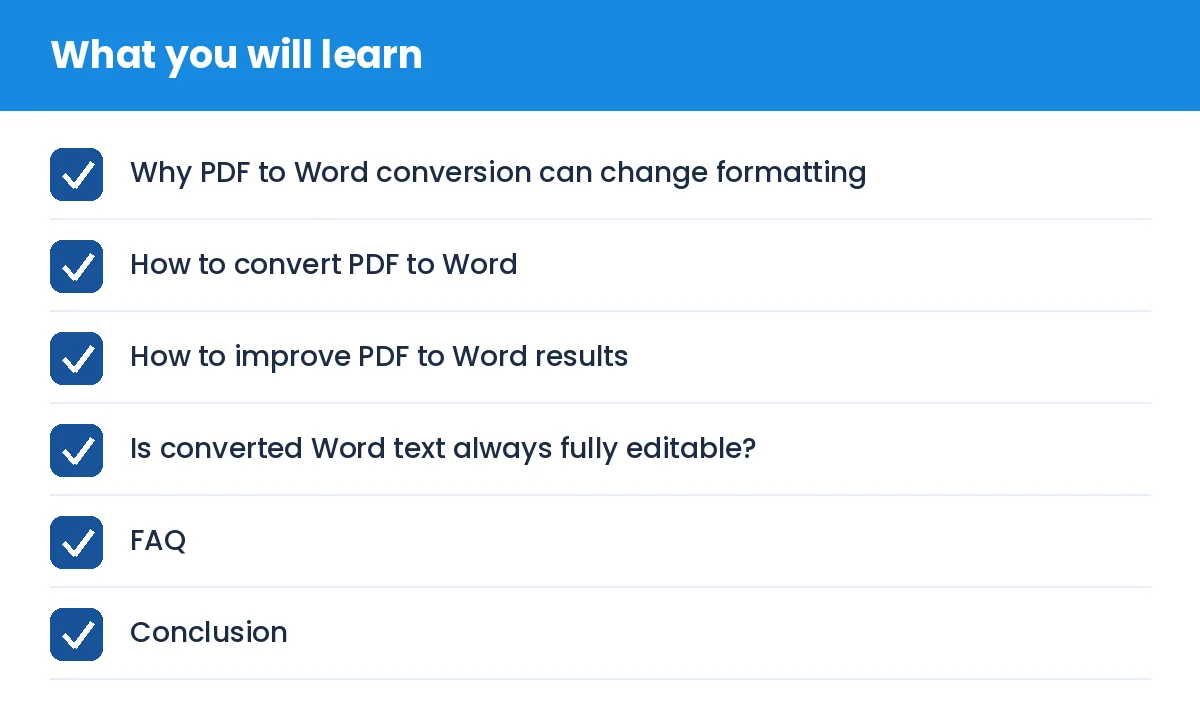
How to Convert PDF to Word Without Losing Layout – Free Guide: what you will learn
Why PDF to Word conversion can change formatting
PDF files are designed primarily for consistent viewing and printing. Word documents use a different layout model. During conversion, text positions, fonts, images and page breaks may therefore move.
The result can depend on the PDF structure, embedded fonts, tables, scanned pages and other elements.
How to convert PDF to Word
Step 1: Choose the PDF file
Select the PDF you want to convert. For important documents, keep the original PDF unchanged as your source copy.
Step 2: Convert the PDF
Use a PDF to Word converter that is designed to preserve the original page appearance as closely as possible.
Step 3: Check every page
After conversion, compare the Word document with the original PDF. Check headings, tables, images, page breaks and margins.
Step 4: Make final edits
If you need to change wording or add information, make those edits after checking the visual layout.
How to improve PDF to Word results
Use a high-quality source PDF
A clean, digitally generated PDF usually converts more predictably than a heavily scanned or damaged document.
Check tables and columns
Tables and multi-column layouts are common areas where conversions can require manual adjustment.
Check fonts
If a PDF uses fonts that are unavailable in the target environment, Word may substitute another font.
Review page breaks
Always scan the converted document before sharing or printing it.
Is converted Word text always fully editable?
Not necessarily. Different conversion methods produce different results. Some workflows prioritize visual page fidelity, while others attempt to reconstruct individual text elements.
If your main requirement is a visually faithful Word copy, prioritize layout preservation. If your main requirement is extensive text editing, choose a conversion method designed for editable text extraction.
FAQ
Can I convert PDF to Word for free?
Yes. Free online conversion tools can handle many common PDF files.
Will images stay in the Word document?
A good conversion workflow can preserve images, but complex documents may still require review.
Why does my Word file look different from the PDF?
PDF and Word use different layout systems, so fonts, spacing, tables and page breaks can change during conversion.
Conclusion
The safest PDF to Word workflow is simple: keep the original PDF, convert it, compare every page and then make your edits. For important documents, always review the final Word file before sending it.
Explore DocConvertPRO's document conversion tools at https://docconvertpro.co/pdf-to-word.