How to Convert Word to PDF and Keep the Formatting Intact
A Word file can look different on every computer. A PDF looks the same everywhere. Here is how to convert safely.
By DocConvertPRO Editorial Team3 min read
You have finished a resume, assignment, invoice or letter in Word and need to send it. If you send the Word file, the layout can change on the other person's computer because of missing fonts or a different version. A PDF fixes the layout in place, so what you see is what they get.
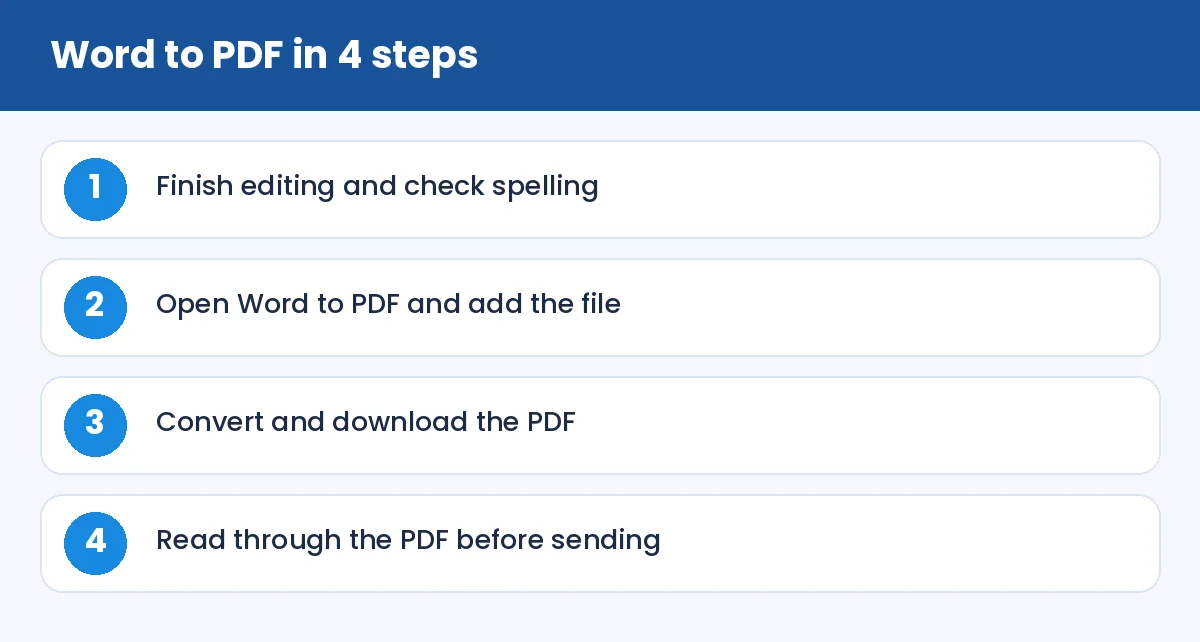
How to Convert Word to PDF and Keep the Formatting Intact: Word to PDF in 4 steps (infographic)
How to convert
Open Word to PDF, add your .docx file and convert. The tool processes the document on a server built for office files so that fonts, tables and images are reproduced faithfully. Download the PDF and open it.
Prepare the document first
A few minutes of preparation prevents most problems:
Run the spelling and grammar check.
Turn on the display of paragraph marks and look for stray empty lines used for spacing. Use proper spacing settings instead.
Check page breaks, especially before headings and above tables.
Update fields such as table of contents and page numbers.
Make sure images are placed inline or anchored properly, not floating loosely.
Fonts
If your document uses an unusual font that the converter does not have, it will substitute a similar one and the line breaks may change. For documents that matter, stick to common fonts such as Arial, Calibri, Times New Roman or Cambria. A resume guide covering this topic is in how to make a PDF resume for ATS.
Check the result
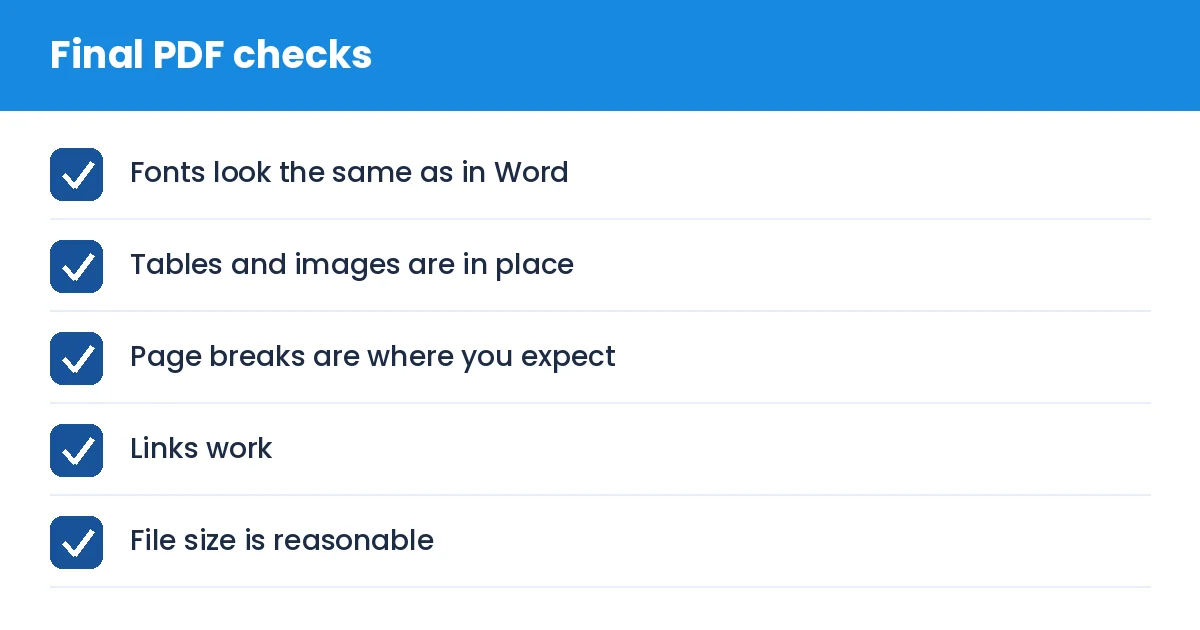
Do not skip this step. Scroll through every page. Look for tables split across pages, images that moved, bullets that changed and headings stranded at the bottom of a page. If something is wrong, fix it in Word and convert again.
Reduce the size
Documents with many photos can produce large PDFs. If you need a smaller file for email or a portal, run it through Compress PDF.
Need to change it afterwards?
For a small correction, Edit PDF can change text in place. For a larger rewrite, it is better to edit the original Word file and convert again. If you only have the PDF, PDF to Word can bring it back into an editable document.
Protect it if needed
If the document contains private information, add a password with Protect PDF, and share that password separately.
Tip: name the file clearly, such as invoice-1042-asha-traders.pdf. A good file name looks professional and helps the receiver find it later.
How to Convert Word to PDF and Keep the Formatting Intact: Final PDF checks (checklist)
Summary
Prepare the document, convert, check every page, compress or protect if required. A good PDF takes only a few minutes and removes any doubt about how your document will look.