Combine multiple PDF documents into one organised file and keep the pages in the order you need.
By DocConvertPRO Editorial Team3 min read
Merging PDFs is useful when several related files need to be delivered as one document. Typical examples are a job application with a resume, certificates and an ID proof, a loan file with salary slips and bank statements, or a college form with attachments that must be uploaded as a single PDF.
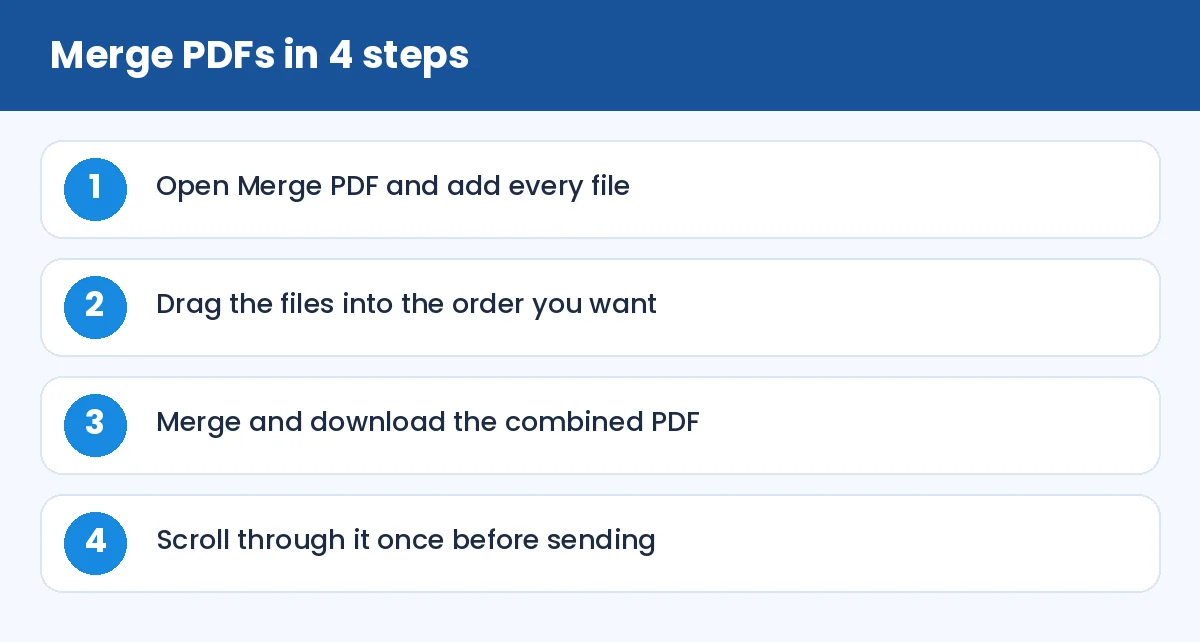
How to Merge PDF Files Online: Merge PDFs in 4 steps (infographic)
How to merge
Open Merge PDF and add the files you want to combine. Arrange them in the order a reader would expect: cover letter first, main document next, supporting proofs after that. Merge, download and open the result.
If you have photos or scans in image form, convert them first. JPG to PDF and PNG to PDF turn pictures into pages that can then be merged.
Plan the order before you start
Before merging, write the order on a piece of paper. It sounds trivial, but the most common merge mistake is simply the wrong order. Rename the files with numbers, such as 1-resume.pdf, 2-marksheet.pdf, 3-id-proof.pdf. Many tools use the file order you add them in.
Watch the file size
Merging adds file sizes together. Ten scanned pages at 1 MB each gives a 10 MB PDF, which many email servers and portals will reject. Compress the individual files or the final result with Compress PDF. For specific portal limits, see how to compress PDF to a specific size in KB.
Fix pages before merging
If one scanned page is sideways, rotate it first. If a file has pages you do not want, extract the needed ones with Split PDF. If a source file is locked with a password you know, remove the protection with Unlock PDF before merging.
Common problems
The merged PDF is huge. One or two high-resolution scans are the usual cause. Compress them separately.
Pages have different sizes. Mixing A4 with a photo-sized page is fine technically but looks untidy. Use consistent scans where possible.
The result asks for a password. One of the inputs was protected. Unlock it first.
Bookmarks or links are gone. Simple merging keeps page content but may drop interactive features. Check links if they matter.
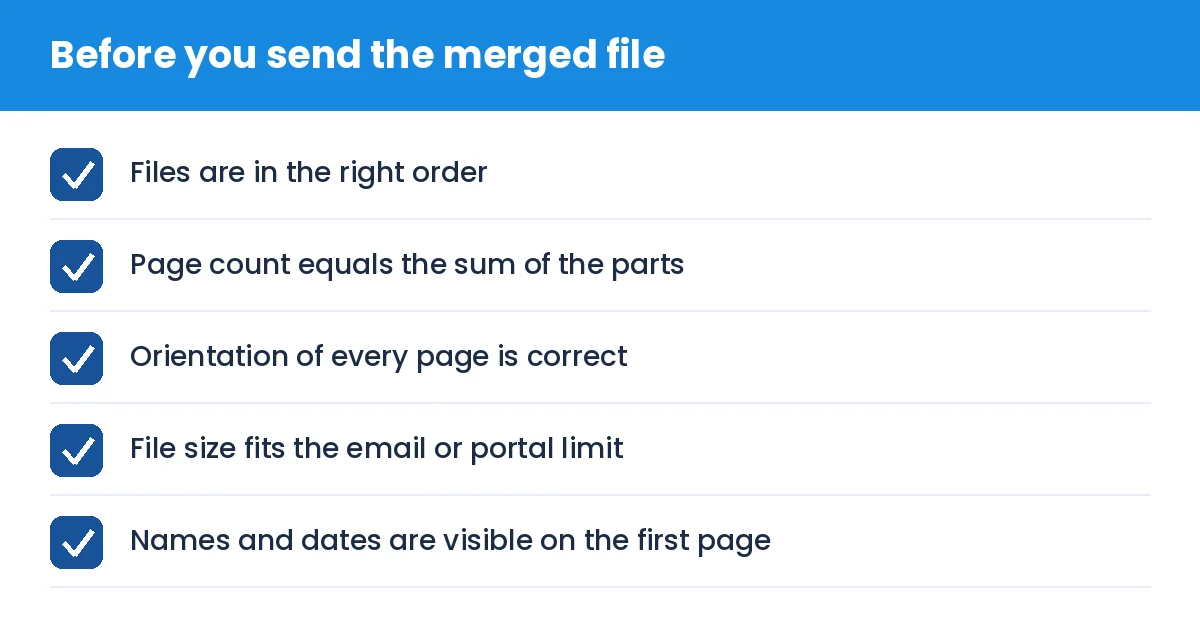
Tip: after merging, check the first and last page and a few pages in the middle. It takes ten seconds and catches almost every error.
How to Merge PDF Files Online: Before you send the merged file (checklist)
Summary
Decide the order, fix problem pages, merge, compress if needed and review. Following that sequence gives you a clean, professional single document every time.